End-to-end testing for platform teams: complete 2026 guide
For end-to-end testing platform engineering teams, gate critical journeys first. Build reliable CI checks with clear ownership and reproducible failures.
UI regression testing healthcare software needs more than screenshots. Build patient-context, permission, and saved-state checks into pull requests.
Automate and scale manual testing with AI ->
Healthcare UI regression testing is the practice of rechecking existing interface workflows after software changes, with the aim of preserving correct patient-facing and clinical behavior. Your tests must verify patient context, permissions, and saved state, not just whether a screen still looks right.
TL;DR
A healthcare interface can look unchanged while selecting the wrong patient, retaining an outdated value, or exposing an action to the wrong role. Your regression suite needs to distinguish an attractive screen from a correct workflow. In your 2026 test plan, make patient context and persisted state explicit acceptance criteria.
Start manually: document the workflow, reproduce it with synthetic records, and record the expected result. Automation comes after you establish that reference. TestDriver provides AI-powered end-to-end testing and code review that runs pull requests in a real desktop sandbox to catch UI regressions.
TestDriver is best for GitHub development teams that want UI regression testing tied to pull requests. That fit does not establish healthcare compliance or replace clinical review. Assess your data-handling requirements before connecting any testing platform to a healthcare environment.
The practical goal is a release decision supported by evidence: what changed, which workflows ran, what failed, and who reviewed the result.
Begin with a shared worksheet, not a tool purchase. Ask engineering, QA, and the relevant clinical or operational owner to describe what a broken interaction would prevent or misrepresent. Separate inconvenience from incorrect patient context, inaccessible information, or an unintended submission.
For example, an appointment filter and a patient-selection control deserve different assertions. The filter needs correct results; patient selection also needs proof that subsequent actions remain attached to the intended record. Document both the visible result and the underlying state you can inspect.
Keep the first scope narrow enough to review. A smaller suite with explicit outcomes gives you a clearer release signal than broad automation that only confirms pages opened.
Build the initial dataset manually in an isolated test environment. Use invented people and test-only credentials rather than copying production screenshots or patient exports. Synthetic data still needs realistic relationships: the selected patient, encounter, appointment, and displayed details must agree.
A useful example fixture contains 2 synthetic patient records and 3 user roles. Choose roles your application actually implements, then test the same action under each permission set. These are starter fixtures, not a coverage benchmark.
Create a reset procedure before scheduling repeated runs. Otherwise, a successful submission can change the next test’s starting state and turn a repeatable check into a sequence-dependent failure.
Your core sequence is: select Patient context, apply Role permissions, perform Workflow action, check Saved state, and retain Review evidence. Each part answers a different question about correctness.
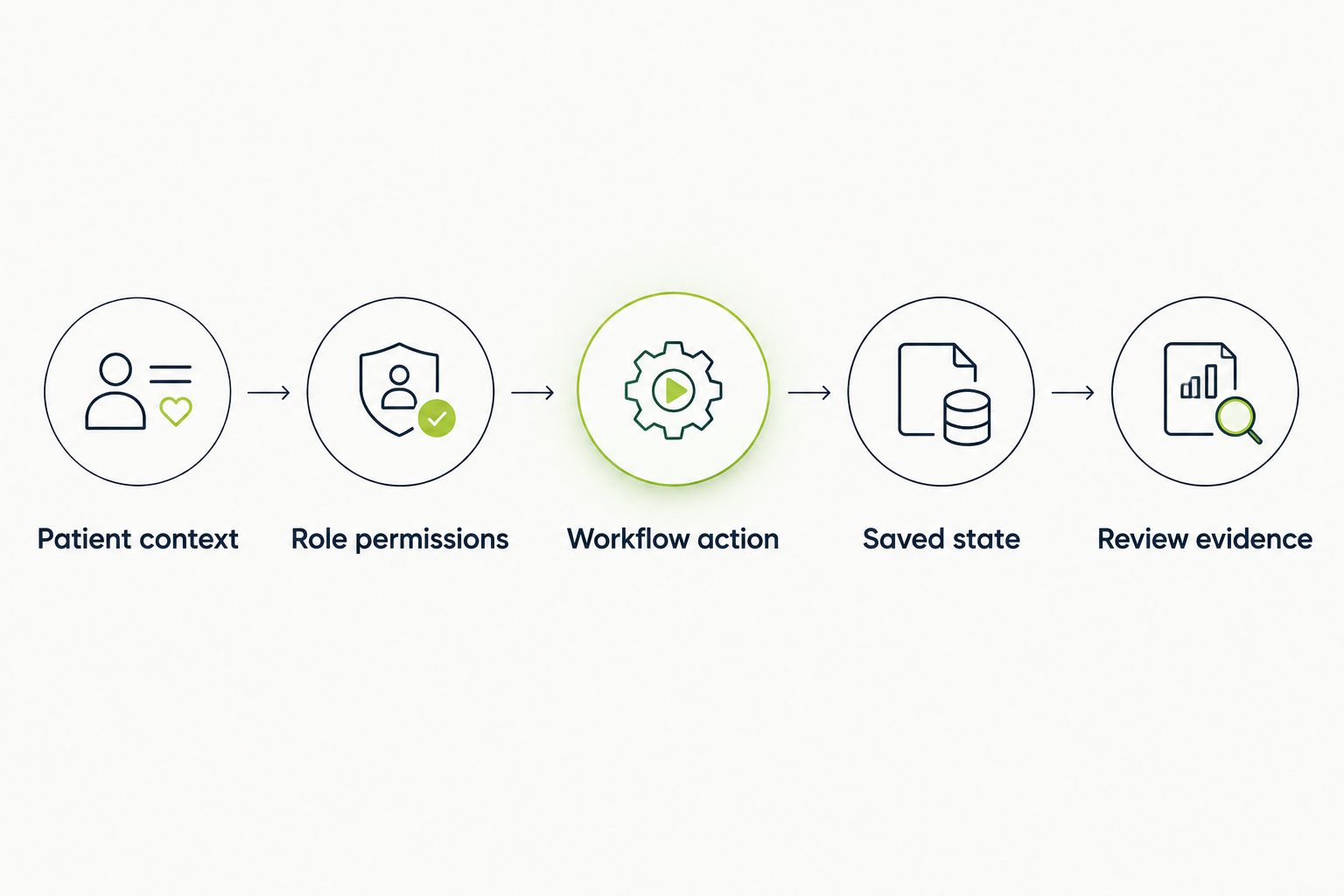
A completed interaction is not enough; verify whose record changed and retain evidence of the result.
Run each workflow manually and write down observable pass conditions. Avoid instructions such as verify the page works. Specify the record, action, expected response, and saved result. Your 2026 acceptance criteria should remain understandable without opening a test script.
For a submission workflow, check the visible confirmation and reopen the affected record. A success message alone does not establish that the correct data persisted. For a denied action, verify both the interface restriction and the application’s authorization behavior through appropriate lower-level tests.
Once those conditions are stable, TestDriver offers a pull-request execution path in a real desktop sandbox. The trade-off remains yours to manage: automated execution does not define clinical correctness, appropriate permissions, or sufficient coverage.
Start with manual before-and-after review of the affected screens. Look for clipped labels, obscured controls, unreadable values, and dialogs that hide essential context. Then automate stable checks that are costly to repeat by hand.
Screenshot testing and functional testing answer different questions. A screenshot comparison detects appearance differences; a functional assertion checks an expected behavior or state. Neither establishes complete accessibility coverage. Include keyboard interaction and accessible-name checks where those requirements apply.
When planning visual coverage in 2026, tie every baseline to a defined state. Comparing screens with different patients, timestamps, or loading states creates noise rather than useful evidence. The selection criteria in visual regression testing tools help separate appearance checks from workflow execution.
First, run your chosen checks manually against the proposed change. Establish that the environment starts correctly, fixtures load, and failures are understandable. Automating an unreliable setup only moves the uncertainty into CI.
Use 1 pull request as your initial integration unit. Record the revision under test and distinguish a product failure from an environment failure. That distinction matters when an unavailable dependency prevents the workflow from reaching the assertion at all.
For TestDriver UI regression testing, the stated execution model runs pull requests in a real desktop sandbox. Confirm its fit against your repository workflow, environment access, and data restrictions before adopting it as a required check. Do not infer healthcare-specific certifications or controls from the execution model.
Investigate failures manually before changing assertions. Reproduce the same action with the same fixture and inspect the application state. A timeout, unavailable dependency, and incorrect saved value require different fixes.
Do not treat a passing rerun as proof that the original failure was harmless. Compare the evidence from both runs. If the failure cannot be explained, retain an owner and a follow-up task rather than silently deleting the check.
In your 2026 reporting, keep product defects, test defects, and environment failures separate. That gives engineering a useful maintenance queue without disguising unresolved application problems as test noise.
Start with a release checklist that connects requirements, test cases, execution results, and unresolved defects. A spreadsheet can establish the structure. Move to a test-management system when shared ownership, history, and review become difficult to maintain manually.
Treat test artifacts as data-bearing records. Screenshots, logs, attachments, and session recordings can contain sensitive content. Synthetic fixtures reduce exposure, but you still need to inspect what the runner captures and determine who can access it.
When evaluating Jira test management tools, use a failed healthcare workflow to test requirement-to-defect traceability, reviewer access, and evidence retrieval. A case list alone does not show whether a reviewer can reconstruct the release decision.
Choose by the question you need answered, not by the longest feature list. For your 2026 evaluation, use the same synthetic workflow across candidates and inspect the failure evidence. The options below serve different purposes; they are not interchangeable.
| Option | Best for | Main benefit | Key limitation |
|---|---|---|---|
| Manual workflow testing | Clinical and operational acceptance review | Lets reviewers examine meaning, context, and unexpected behavior | Requires human execution and consistent documentation |
| Scripted browser tests | Stable browser workflows with explicit assertions | Makes expected interactions repeatable in CI | Requires ongoing script and fixture maintenance |
| Screenshot testing | Detecting unintended appearance changes | Exposes layout and visual differences | Does not prove saved state or correct authorization |
| TestDriver | GitHub teams testing pull requests in a desktop sandbox | Executes pull requests to catch UI regressions | Does not replace clinical acceptance criteria or compliance assessment |
| API and service tests | Permissions, data rules, and persistence checks below the UI | Checks behavior without depending on screen layout | Does not verify what users see or can interact with |
Combine layers rather than choosing one winner for every risk. Use UI tests for user-visible workflows, lower-level tests for underlying rules, and human review for clinical meaning. Keep each layer responsible for an explicit outcome so duplicated effort does not hide missing coverage.
A correctly rendered form can still show the wrong record. Include distinguishable synthetic patients and verify context before and after navigation. For workflows that support switching patients, confirm that unsaved state and subsequent actions follow the application’s intended behavior.
A test environment label does not make copied patient information safe. Use synthetic fixtures and review screenshots, logs, and attachments for unintended content. Treat artifact access as part of the test design, not an administrative cleanup task.
An administrator’s successful workflow does not establish that other roles have correct access. Exercise both permitted and denied actions with the roles your application implements. Include direct navigation and session changes where those paths are relevant.
A runner can execute an incorrect requirement faithfully. Have the appropriate domain owner approve consequential workflow expectations before they become regression assertions. Keep technical execution evidence separate from judgments about clinical suitability.
A changed screenshot is a review request, not an instruction to replace the reference image. Compare the changed state with the requirement and affected workflow. Approve the baseline only after the difference is understood and accepted.
What is UI regression testing for healthcare software?
UI regression testing for healthcare software checks that existing interface workflows still behave correctly after changes. It should verify patient context, permissions, visible values, and saved results rather than appearance alone.
What should healthcare teams automate first?
Automate repeatable workflows with consequential failure modes and explicit expected results first. Use synthetic fixtures and prove that the manual case is reliable before connecting it to CI.
Is screenshot testing enough for a patient portal?
No. Screenshot testing checks appearance differences, but it does not establish that a submission saved correctly or that authorization rules hold. Pair visual checks with functional and lower-level assertions.
Can healthcare regression tests use real patient records?
Use synthetic patient records as the default for regression testing. Any use of real patient information requires an approved data-handling process appropriate to your organization and obligations.
Where does TestDriver fit in healthcare UI regression testing?
TestDriver fits the pull-request execution layer for GitHub development teams. It runs pull requests in a real desktop sandbox to catch UI regressions; healthcare suitability and data-handling requirements need a separate assessment.
Does passing an automated UI test prove healthcare compliance?
No. A passing UI test establishes only that its defined checks passed under the tested conditions. Compliance requires assessment of the applicable requirements, controls, processes, and evidence.
How should teams handle an intermittent regression failure?
Investigate and classify the original failure before relying on a rerun. Preserve its evidence, assign an owner, and define a restoration condition if the check is quarantined.
Add a wrong-patient negative test before adding another happy path. Create distinguishable synthetic records, switch context, and verify that the next consequential action targets the intended record. Define the expected handling of unsaved values instead of assuming that clearing or retaining them is always correct.
That test forces a useful conversation: what exactly should remain attached to the patient, the encounter, the session, or the user? Resolve the answer with the workflow owner, then encode it in your 2026 regression suite.
For end-to-end testing platform engineering teams, gate critical journeys first. Build reliable CI checks with clear ownership and reproducible failures.
End-to-end testing Series B startups can trust starts with critical workflows. Build PR checks, isolate test data, and gate merges on clear evidence.
AI code review open source maintainers can trust needs evidence. Compare review methods, isolate contributor code, and keep humans in control of merges.
Automated UI testing fintech teams can trust starts with PR checks. Cover payment states, permissions, test data, and failures before you merge.
TestDriver runs every pull request in a real desktop sandbox, finds bugs, and builds regression tests - right from your repo.